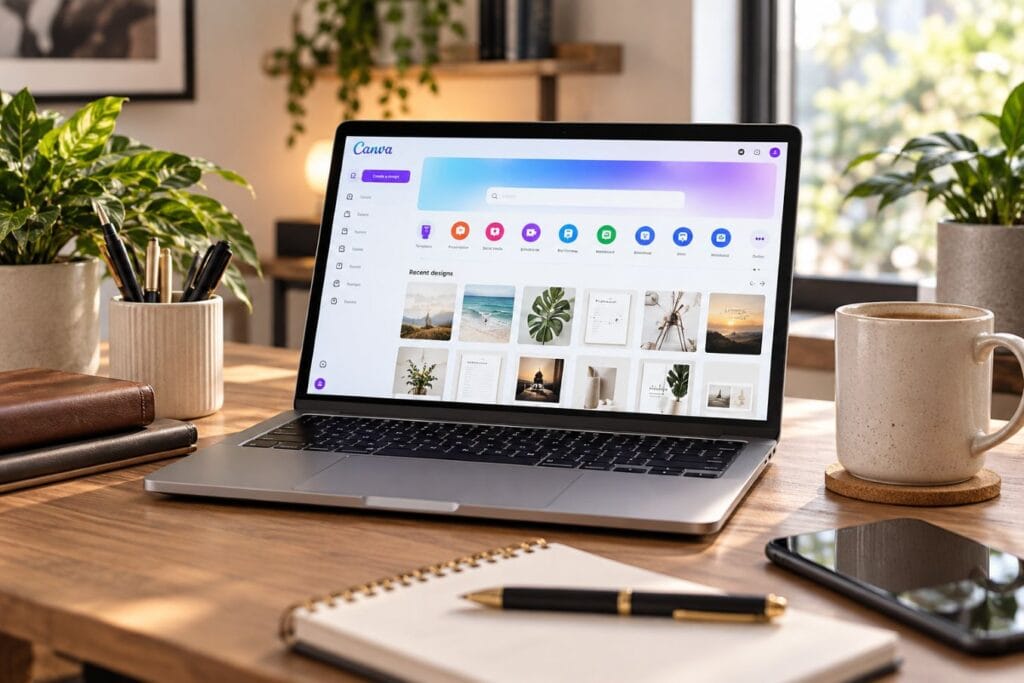
Let’s be honest. Running a business means wearing about twenty hats, and “graphic designer” probably wasn’t one you planned on adding. That’s exactly why Canva for entrepreneurs can be such a useful tool when you need strong visuals without spending half your day learning complicated design software.
You might need a Pinterest pin before lunch, a lead magnet by tonight, and a product mock-up before the day is over. Fortunately, Canva can handle far more than basic social media graphics. That makes it a practical tool for busy business owners. Even better, you don’t have to master every feature at once. Start with the problem you need to solve, then build your skills as you go.
Canva is just one of several tools that can make running a business easier. If you’re still trying to figure out which platform fits what you need, you can also check out our guide to 10 AI platforms for business and see how the different tools compare.
- 1. Build a Brand Kit
- 2. Create Different Versions of Your Logo
- 3. Build Your Own Visual Element Library
- 4. Create Digital Downloads
- 5. Build Decision Guides and Road maps
- 6. Make Product Mockups
- 7. Batch Pinterest Pin Templates
- 8. Turn Blog Posts Into Carousel Content
- 9. Create Strong Featured Images and Thumbnails
- 10. Build Presentations and Proposals
- 11. Design Packaging Inserts and Thank-You Cards
- 12. Create Reusable Email Graphics
- 13. Organize Your Canva Folders
- 14. Save Your Best Designs as Master Templates
- 15. Repurpose One Design Across Several Platforms
Canva for Entrepreneurs: Brand Identity and Consistency
1. Build a Brand Kit
If you’re building a business, you need a look people can start recognizing as yours. That overall look is part of your branding, which includes things like your logo, colors, fonts, images, and the style you use across your website, social media, products, and marketing.
Think about a company like Nike. You can often recognize the swoosh, the colors, and the overall style before you even stop to read the name. That’s what strong branding does—it helps people connect a certain look with a certain business.
A Brand Kit is simply a place where you keep the main pieces of that look together. Canva lets you save things like your logos, brand colors, and fonts so you don’t have to search through old files or try to remember what you used last time.
That makes creating new graphics much easier. Instead of choosing new colors and fonts every time, you already have the basics ready to go.
A simple Brand Kit might include your main logo, alternate logo versions, brand colors, heading fonts, and body fonts. Additionally, keeping those pieces consistent helps your website, Pinterest pins, emails, products, and social media graphics feel like they all belong to the same business.
2. Create Different Versions of Your Logo
If you’re going to build a business, you need something people can recognize as yours. That usually starts with a logo. A logo is the name, symbol, or design that represents your business. It helps people recognize it when they see it again.
Sometimes one logo won’t work everywhere, though. Your full logo might look great across the top of your website. However, it can become hard to read in a small profile picture, product label, or social media graphic.
That’s why it helps to create a few versions. You might have a full horizontal logo for your website. Then you could use a stacked version for square spaces and a simple icon for smaller areas.
Canva makes this pretty easy. You can create those different versions and keep them together. Then, instead of constantly resizing one logo, you can simply use the version that fits the space.
Additionally, using those versions consistently helps your business look more polished and familiar. Your logo is one part of your branding. Your colors, fonts, and other visual elements all work together too.
3. Build Your Own Visual Element Library
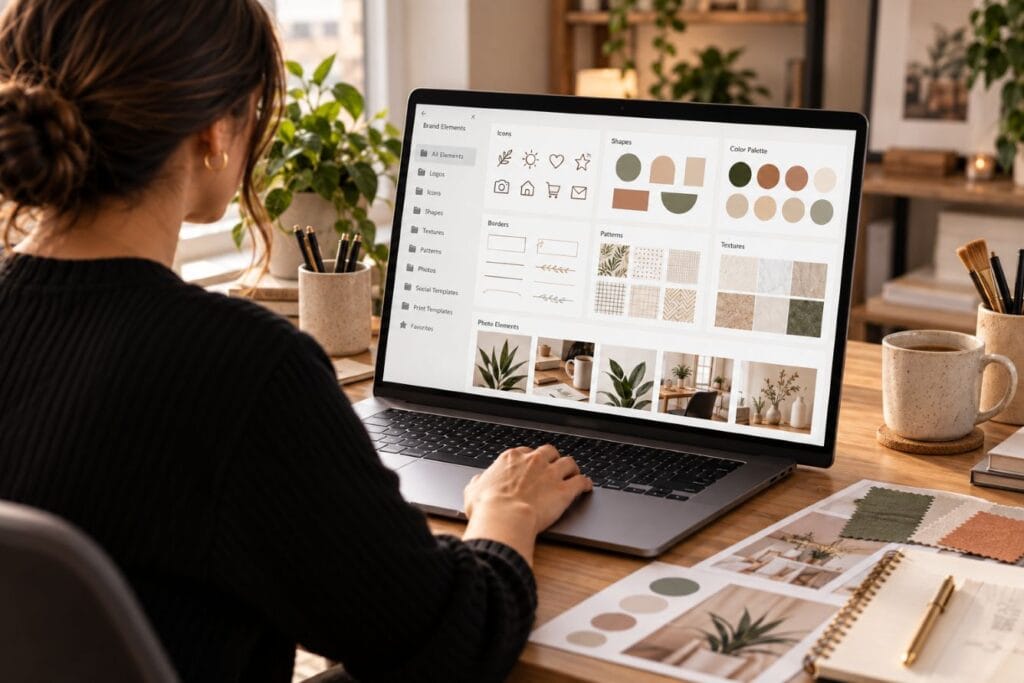
Once you have your main brand pieces set up, you can go a step further and create a collection of smaller design elements you use over and over. These can include things like borders, textures, icons, shapes, backgrounds, and certain photo styles.
Those details may seem small, but they can help your graphics feel more connected. For example, if you keep using the same kind of border, icon style, or background texture, people may start recognizing that look as part of your business.
This is different from your Brand Kit because you’re not just saving your logo, fonts, and colors. You’re building a little library of extra design pieces that help give your content more personality.
Canva makes it easy to keep those elements organized so you can grab them when you need them. Instead of searching for the same border, icon, or background every time, you already have a group of pieces that work with your overall look.
That saves a lot of time when you’re creating new graphics. Once your visual element library is built, you can reuse those pieces and keep everything looking consistent without starting from scratch every time.
Canva for Entrepreneurs: Digital Products and Lead Magnets
4. Create Digital Downloads
If you’ve never made a digital product before, it can sound more complicated than it really is. A digital download is simply something a customer can buy or receive online, like a worksheet, checklist, planner, tracker, journal, printable card, piece of artwork, or short workbook.
Canva makes this much easier because you don’t have to start with a blank page. You can choose from templates that are already laid out for you, then change the colors, fonts, images, and text to fit your own brand.
If you want more control, you can also build the design from scratch. You can even use ChatGPT or Gemini to help you plan the content, organize the pages, or come up with layout ideas before you start designing.
That’s where the possibilities really open up. You can use Canva to create something simple like a one-page checklist or something much bigger like a planner, workbook, journal, set of cards, or printable artwork.
Additionally, keeping the design clean and easy to follow makes the final product feel more professional. Clear headings, simple spacing, and an organized layout can make a big difference in whether someone actually enjoys using what you created.
5. Build Decision Guides and Road maps
Sometimes people have a choice to make about something and just need help figuring out which option makes the most sense. That’s where a decision guide or road-map can come in handy.
A decision guide or road-map is basically a visual page that walks someone through a choice or process. It might be a comparison chart, checklist, step-by-step path, or a simple “if this, then that” guide.
Canva makes these easy to build because you can start with a layout and organize everything in a way that’s clear at a glance. Instead of making someone read a long explanation, you can show them the main choices on one clean page.
This can also work well as a free download, which is often called a lead magnet. A lead magnet is something useful you give away in exchange for someone joining your email list.
For example, you could create a guide that helps someone choose the right AI platform based on what they need help with, then link each option back to a full article on your site. That way, the guide becomes something they can actually use more than once instead of downloading it and forgetting about it.
6. Make Product Mockups
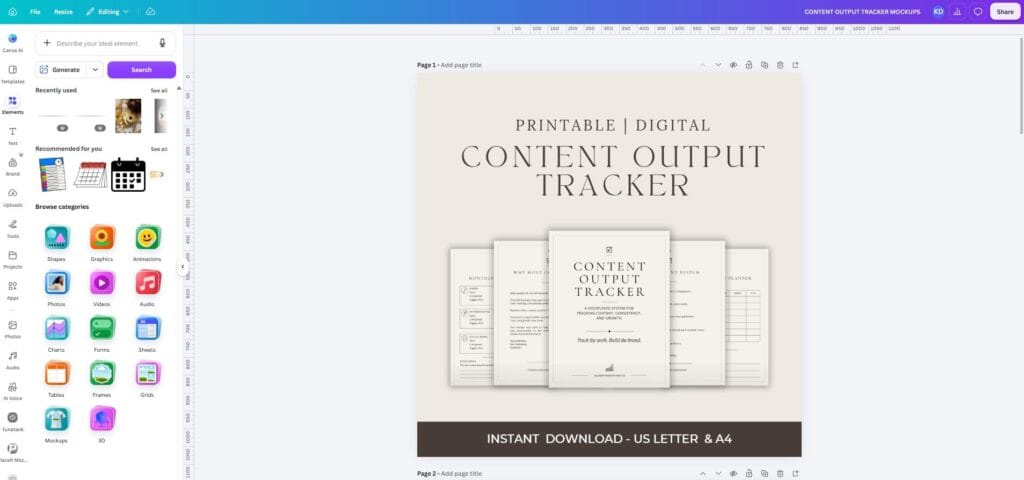
If you’re selling something online, people usually want to see what it might look like before they buy it. A mock-up is simply a realistic-looking image that shows your design on a product, like a shirt, mug, journal, planner, or even a digital device.
That matters because taking professional photos of every product idea isn’t always realistic, especially when you’re building a business on your own. Canva makes this easier by letting you place your design into ready-made product scenes so people can get a better idea of what the finished item could look like.
You can also use Canva’s AI tools to help create graphics, layouts, and design ideas before you build the mock-up. That gives you more room to test different looks without spending money on samples every time.
If something doesn’t look right on a mug, shirt, notebook, or product cover, you can adjust it before you ever put it in your shop. Additionally, mockups can make your listings look more polished because customers can picture the finished product instead of only seeing a flat design file.
Canva for Entrepreneurs: Content and Traffic
7. Batch Pinterest Pin Templates
If you’re trying to get more people to your blog, shop, or website, Pinterest can be a useful traffic source. A Pinterest pin is simply an image that links back to your content, so someone can click the pin and land on your article, product, or freebie.
The downside is that making a brand-new pin every time can eat up a lot of time. Canva makes that easier because it already has Pinterest-sized templates you can start with, or you can create a few of your own that match your brand.
Once you have those templates made, you don’t have to redesign everything from scratch. You can duplicate one, change the headline, swap out the image, make a few small adjustments, and move on.
That’s a huge time-saver if you’re trying to post regularly. Additionally, keeping a few different layouts gives your pins some variety without making you reinvent the whole design every single time.
8. Turn Blog Posts Into Carousel Content
If you’re new to blogging, one article can give you a lot more than just one page on your website. Once you’ve written a blog post, you can pull out the main points and turn them into smaller pieces of content for social media.
One easy way to do that is to create a carousel, which is just a group of slides someone can swipe through, with each slide covering one idea from your blog post.
For example, if you write a post with five tips, you can turn each tip into its own slide. Then, on the last slide, you can point people back to your website if they want to read the full article.
Canva makes this pretty simple because you can start with a carousel template and then add your own text, colors, images, and branding. Once you have a layout you like, you can reuse it for future posts instead of starting from scratch every time.
As a result, one blog post can keep working for you in more than one place. You’re not constantly trying to come up with something new because you’re getting more use out of content you already took the time to create.
9. Create Strong Featured Images and Thumbnails
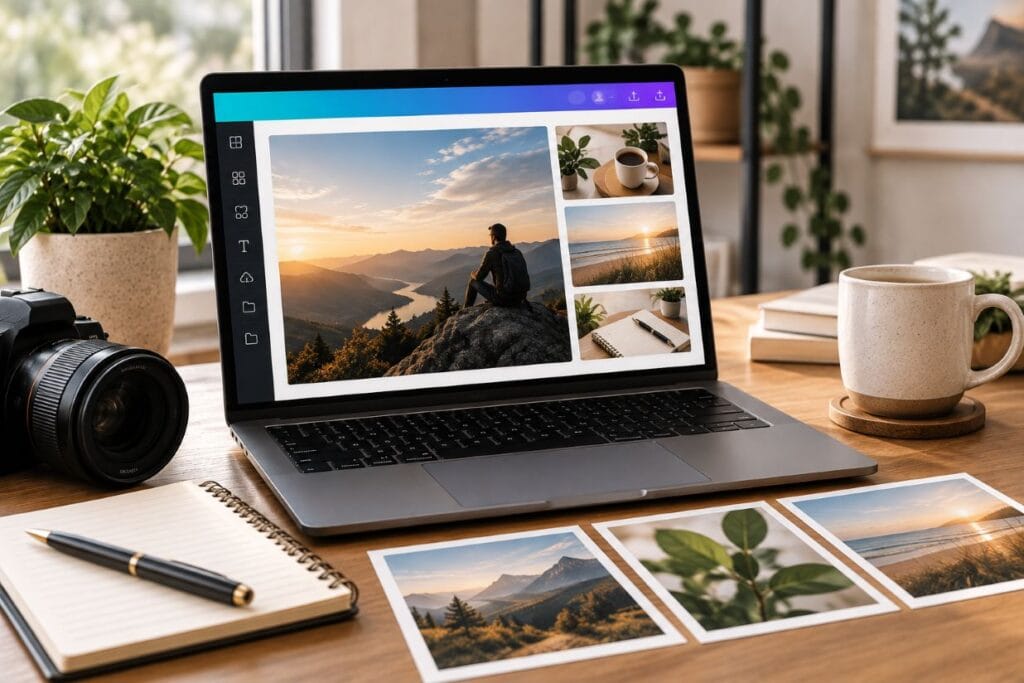
If you publish a blog post, video, or product page, the image is often the first thing people notice. A featured image or thumbnail is the main visual that represents that piece of content before someone clicks into it.
That image matters because it helps people decide whether they want to stop and look closer. However, that doesn’t mean you need wild colors, giant arrows, or a pile of text crammed into one graphic.
Canva makes creating these images much easier because you can start with templates that are already sized for blogs, YouTube, social media, and other platforms. Then you can add your own image, colors, text, and branding without having to figure out the layout from scratch.
You can also save a style you like and reuse it later. That way, your blog images, thumbnails, and social graphics can start to look more connected without you designing every single one from the ground up.
A clean image is usually easier to understand at a glance. One strong subject, a clear headline if you use one, and enough empty space can help people see what the content is about without making the design feel crowded.
Additionally, keeping your featured images and thumbnails consistent can make your website and social feeds look more polished. Over time, people may even start recognizing your visual style before they read the title, which is also part of your branding across social platforms.
Canva for Entrepreneurs: Sales and Business Materials
10. Build Presentations and Proposals
If you need to explain an idea, pitch a project, or show someone what your business can offer, sometimes an email just isn’t enough. That’s where a presentation or proposal can help because it gives you a clearer way to organize the information.
A presentation is usually a series of slides that walks someone through an idea, while a proposal is more focused on what you’re offering, what it includes, and what the next step might be. Both can help make your business look more organized when you’re talking to a client, partner, or potential customer.
Canva makes creating these much easier because it already has layouts for presentations, proposals, pitch decks, and other business materials. You can choose a template, add your own information, adjust the colors and fonts, and make it fit your brand.
The important part is keeping it easy to follow. Short sections, clear headings, simple visuals, and enough space between ideas can make the whole thing feel more professional without making it complicated.
The goal isn’t to impress someone with fancy design. It’s to help them understand your idea, your offer, or your plan as quickly and clearly as possible.
11. Design Packaging Inserts and Thank-You Cards
If you sell physical products, the experience doesn’t have to end when someone opens the package. A small thank-you card or insert can make the order feel more personal and help your business feel more put together.
A packaging insert is simply a small card or printed piece you include with an order. It can say thank you, explain how to care for the product, offer a discount, point someone to another product, or invite them to join your email list.
Canva makes these easy to create because you can start with card and print templates, then add your own logo, colors, message, and website information. That gives you a simple way to keep the insert tied to the rest of your branding without having to design it from scratch.
You can also use these little cards to guide customers back to your business. For example, you might include a QR code or website address that sends them to your shop, a free download, or a page where they can see more products. That gives you another chance to turn a one-time buyer into someone who comes back, joins your email list, or finds something else they want to buy.
You don’t need expensive packaging to make an order feel thoughtful. Sometimes one clean, well-designed card is enough to make the whole experience feel more professional and memorable, which can also help build trust in your business.
12. Create Reusable Email Graphics
When trying to grow a business online, building an email list gives you a way to stay connected with people who are already interested in what you do. Instead of depending on someone to remember your website or hoping a social platform shows them your next post, you can reach them directly in their inbox.
That can help bring people back to your blog, shop, products, or free resources. Over time, those repeat visits can turn a casual reader into a subscriber, customer, or someone who keeps coming back because they trust what you share.
Once you start emailing people, Canva can help make those emails look more polished. You can create headers, banners, product graphics, sale images, and other visuals that match the rest of your business.
Just like Canva has pre-made templates for Pinterest pins, product mockups, presentations, and other things we’ve already talked about, it also has templates you can use for email graphics. You can choose one that fits what you need, change the text, colors, and images, then make it fit your own brand.
This is another time-saving feature of Canva because once you have a few email graphics you like, you can save them and use them again. Instead of designing everything from scratch, you can make a few quick changes and have your next email ready much faster.
Additionally, using the same colors, fonts, and style helps your emails feel consistent with the rest of your business. Over time, doing this also helps people recognize your brand and builds trust.
Canva for Entrepreneurs: Workflow and Productivity
13. Organize Your Canva Folders
As you start creating more designs in Canva, things can get messy pretty fast. A folder is simply a way to group similar designs together so you can find what you need without digging through everything you’ve ever made.
For example, you might have separate folders for blog graphics, Pinterest pins, lead magnets, product designs, email graphics, social media content, and brand assets. That way, when you need a certain type of design, you already know where to look.
Clear file names help too. Instead of saving something as “blue graphic final final 2,” give it a name that tells you exactly what it is, like “Canva Pinterest Pin Template” or “Email Header September.”
This may sound like a small thing, but it can save a surprising amount of time as your business grows. The more content and products you create, the more useful it becomes to have everything organized instead of searching through hundreds of designs.
14. Save Your Best Designs as Master Templates
Once you create something that works well, like a Pinterest pin, email graphic, product image, lead magnet page, or social media post like we’ve talked about, you won’t need to rebuild it every time. Instead, you can create a master template, which is simply a saved version of that design that you can duplicate and reuse later.
A good habit to make when doing this is to name your original file Master Template. Then, whenever you need a new version, duplicate it first and rename the copy for whatever you’re creating.
For example, you might have a file called Pinterest Pin Master Template. When you’re ready to create a new pin, duplicate that file, rename the copy for the new article or product, then change the text and image.
Canva makes this easy because your designs stay saved in your account. That means you can keep your original master version untouched while creating as many new versions as you need.
This is another simple way Canva can save you time and keep your work organized. Instead of wondering which file was the original, you always know which one to copy and which one you can safely edit.
15. Repurpose One Design Across Several Platforms
One good design can usually do more than one job. A blog graphic might also become a Pinterest pin, email banner, Instagram post, Facebook graphic, or even part of a product promotion.
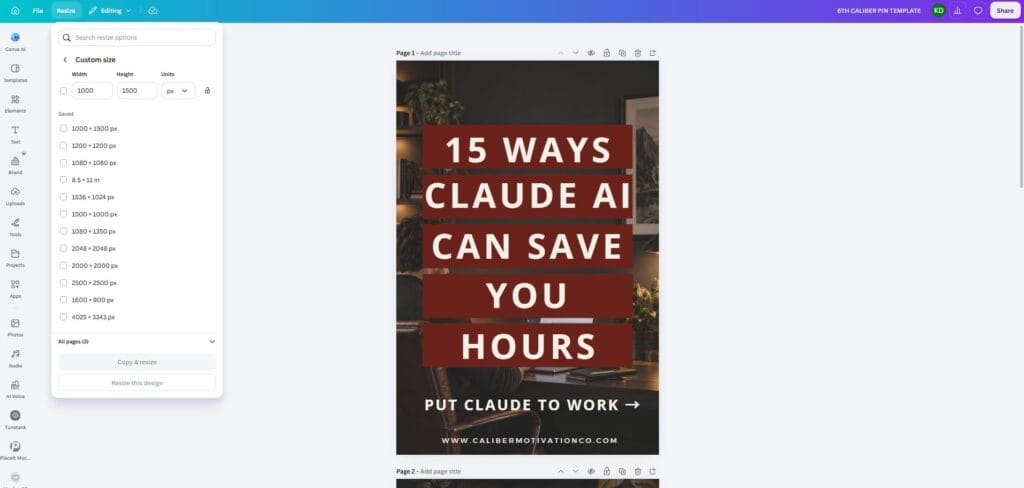
The reason this works so well is that Canva lets you resize the same design for different platforms and uses without starting over. With just a few clicks, you can make a copy, click Resize, choose the size you need or type in the new dimensions, then adjust the text and images so everything fits.
For example, you might start with a Pinterest pin, then make a copy and resize it for Instagram or Facebook. After that, you may only need to move a few things around before the new version is ready.
This is especially helpful when you want to promote the same blog post, product, or freebie in more than one place. You can keep the same message and branding while still making each graphic fit the platform properly.
That saves time and helps you get more use out of work you already finished. Instead of creating something brand new for every platform, you’re taking one solid design and making it work harder for your business.
Affiliate Disclosure: This post may contain affiliate links. If you purchase through one of these links, I may earn a small commission at no extra cost to you.
Want to Learn a Little More?
If you’re brand new to Canva, Canva For Dummies can help you get more comfortable with the platform itself. If you want to understand why some designs look clean and professional while others feel off, The Non-Designer’s Design Book is a good beginner-friendly introduction to basic design principles.
You don’t need either book to start using Canva, but they can help you understand the tool and the design choices behind it a little faster.
Canva also has a beginner graphic-design course in its Design School covering typography, color, alignment, visual hierarchy, fonts, images, and file formats, so you could link that as a free resource too.
You Don’t Need to Become a Designer
Canva works best when you stop treating it like another complicated skill you have to master. You don’t need to know every feature before it becomes useful because so many templates are already there waiting for you to customize.
That means you can start with something that already looks good, then change the text, colors, images, and branding to fit your business. Later on, you can explore more of Canva’s features as you get more comfortable using it.
The funny part is, the more you use Canva, the more design skills you start picking up without really trying. Before long, you’ll notice things like spacing, balance, fonts, and colors that you probably never paid much attention to before.
So keep it simple in the beginning. Anything new you’re learning is going to feel a little difficult at first, but you’ll get better as you go. The more you use Canva, the easier it starts to feel.
Start with the task at hand. Need more Pinterest graphics? Build templates. Need a lead magnet? Create a clean PDF. Need better product images? Start with mockups.
The goal is simple: use Canva to save time, make your work easier, and create better-looking content for your business.
If you’re building stronger habits, better systems, and a business designed to last, visit the Caliber Motivation Co. shop for practical tools built around discipline, growth, and legacy.
Join The Standard
Get practical articles on discipline, mindset, structure, and execution delivered straight to your inbox.
No hype. No fluff. Just real-world strategies to help you stay focused and keep building.
No spam. Unsubscribe anytime.